Enter match results
Record completed match scores and keep standings synchronized with actual results.
Overview
Managers can enter any season score. Season Settings can also grant access to season captains, players on their assigned courts, or both groups. The summary updates from current entries; finalized round awards remain frozen until a manager recalculates them.
To enter a score
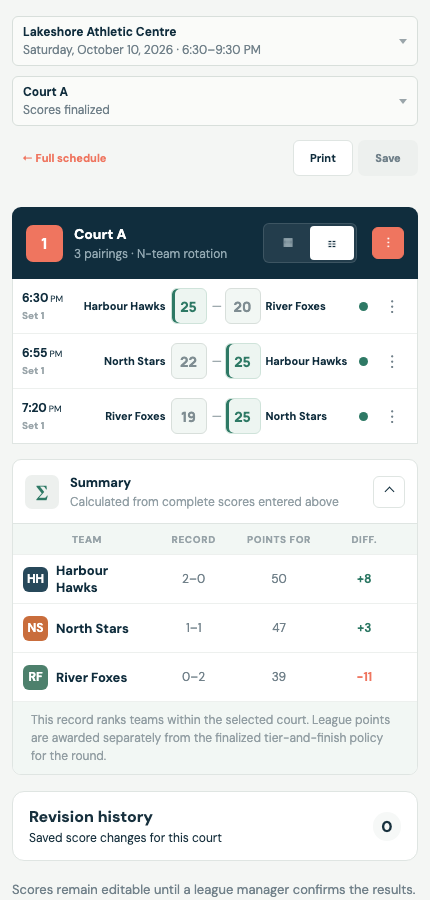
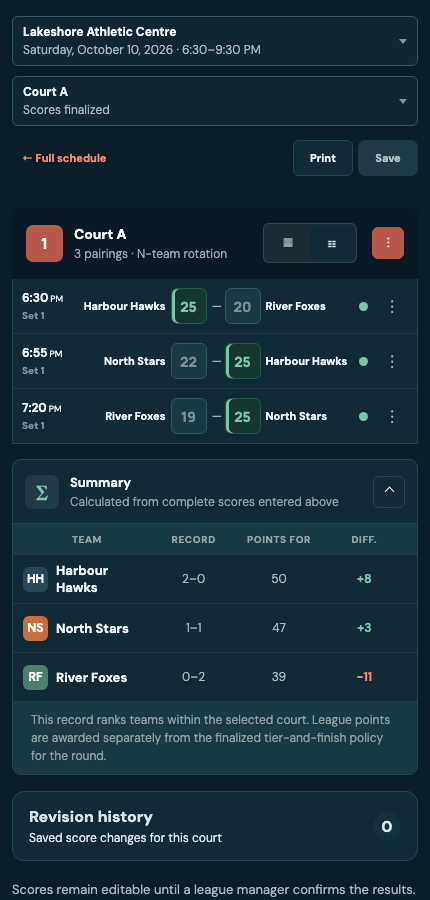
In Scores, choose a booking and court, then enter set scores in Matchups or Set-by-set view. Choose Save changes to write the revised scorecard.
Match result fields
Set scores
Enter each team's numeric score for every played set. Unused trailing sets may remain blank.
Match status
Matches use Draft, Scheduled, Forfeited, or Finalized status. A generated schedule normally uses Scheduled; Forfeited records the forfeiting team without fabricated scores.
Notes
Add a match note or a short note to an individual set. Notes are visible to everyone who can access the scorecard.
Court notes
Use the Court notes field below the score entries for information that applies to the entire court scoresheet rather than one match or set. It appears in the large Court notes field on printed scoresheets.
Special cases
Forfeit
Mark the forfeiting team. The shared scoring engine applies the configured forfeit treatment to records, tier results, or rating changes.
Editing and finalization
As a manager, you can correct scores after finalization. If the official calculation no longer matches the scorecard, use the round's out-of-date warning to recalculate that round. Later finalized rounds remain unchanged.
When two people edit scores
League Portal saves only the score, note, status, or forfeit fields that were changed. Edits to different matches—or different fields in the same match—can therefore be combined without one person replacing the other person's work.
If both people change the same field—or one person clears a score that remains open while the other screen saves that match—the second save keeps the unsaved entry visible and shows both values. The match is identified by its time and teams rather than an internal ID. Choose Use latest or Keep mine; keeping your value rebases it onto the newest scorecard rather than blindly overwriting other changes.
While the page is visible and online, League Portal checks for newer season data every 15 seconds and whenever the window regains focus. Clean pages update silently, with refreshed score cells briefly highlighted. If local edits are open, a floating Updates available notice waits until those edits are saved or reverted.
Scorecard tools
- Switch between Matchups and Set-by-set without changing the underlying score data.
- Use arrow keys to move between score cells in Set-by-set view.
- Open Summary to review records, points for, points against, and point differential from unsaved entries.
- Swap sides, clear one match, clear the whole court, or add match and set notes when your role permits it.
- Use Court notes for information that applies to every match on the selected court.
- As a manager, add or remove matches from the scorecard.
- Use Revert to discard unsaved changes or Save changes to keep them.
- Expand Revision history to see who saved score or court-note changes, when they saved them, and the before-and-after values.
- Use Print scoresheet for a light, one-page scorecard containing the organization, season, venue, booking, and court context.
- From Schedule, use Print scoresheets to print every court in the selected round as a separate page in one print job.
- Scanning a printed scoresheet's QR code opens that booking and court. Signed-in season members go directly to the full Scores tab; signed-out visitors and other users see its public scorecard.
When two people edit court notes
Clean scorecards receive newer court notes during the regular background refresh. If someone else saves while you are writing, your draft remains in place.
When you save, League Portal shows the latest saved note and your note side by side. You can use the latest text, keep editing to combine them, or intentionally overwrite it with yours.